Manual Three-Circle Calibration
Overview
Manual three-circle calibration calibrates the pixel scale by generating three standard circles in the Vision Area. Compared to single circle calibration, three-circle calibration uses multiple reference points for more accurate and stable results.
Prerequisites
- Prepare a standard calibration target with clearly visible circle outlines
- Ensure the calibration target surface is clean, with no visible scratches or stains
- Place the calibration target within the machine's measurement range
Steps
Step 1: Enter Three-Circle Calibration
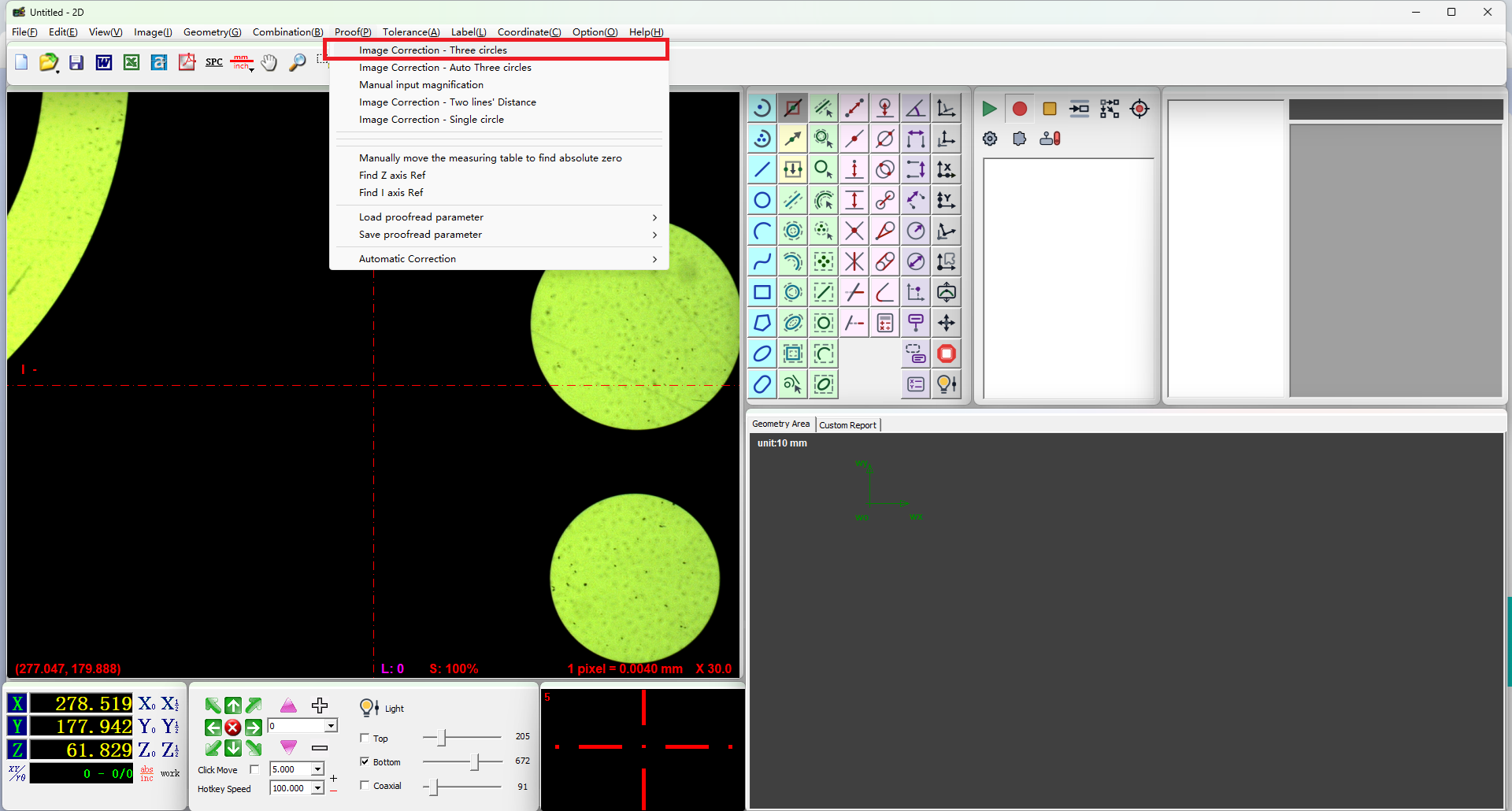
- Click Calibration in the menu bar
- Select Vision Calibration - Three Circles
Step 2: Generate Standard Circles
- Find a standard circle in the Vision Area
- Position the standard circle within the circle frame
- Click the left mouse button to generate a circle
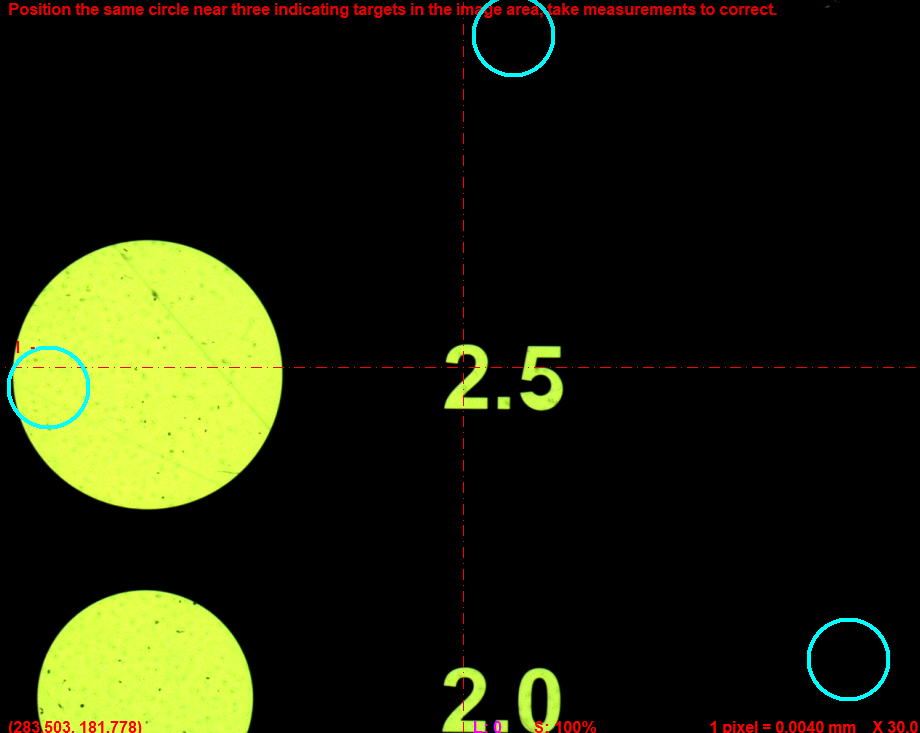
- Move the stage to find a second standard circle
- Position it within the circle frame and click the left button again to generate the second circle
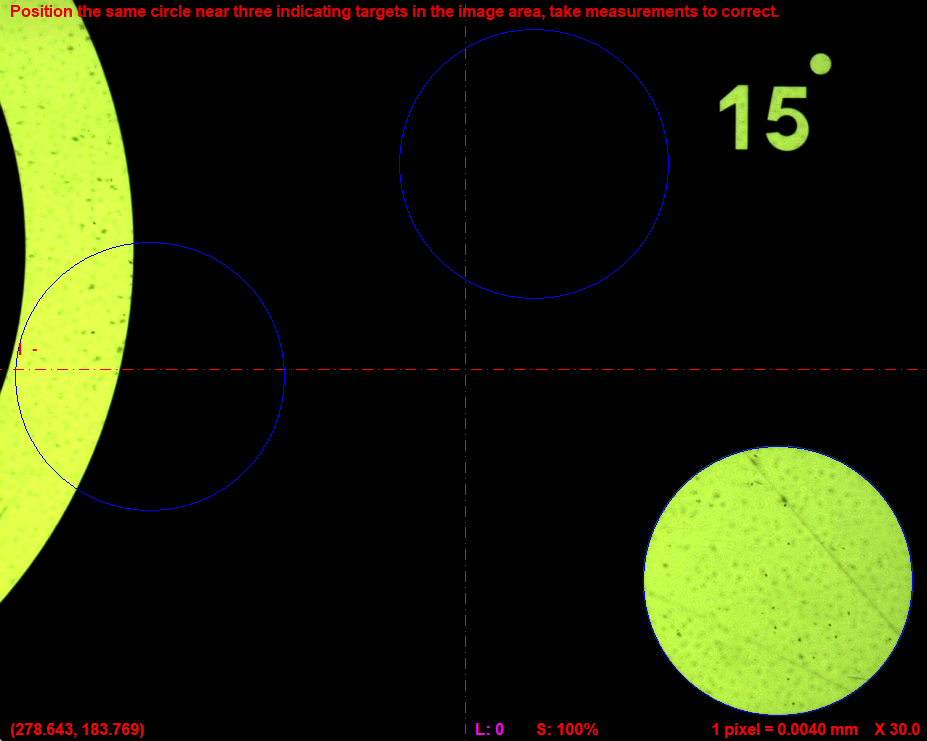
- Generate a third standard circle in the same way
Step 3: Complete Calibration
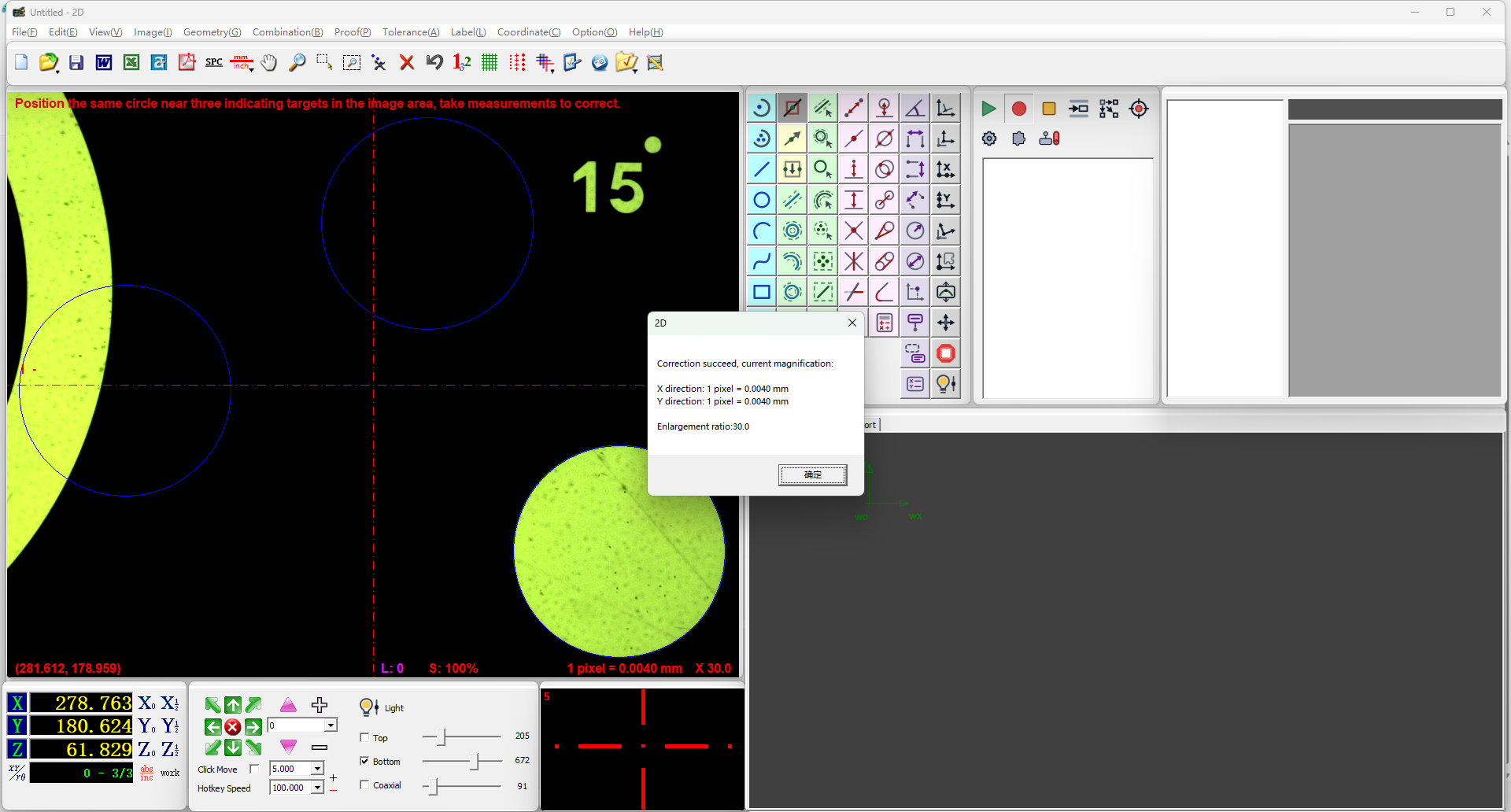
After generating three standard circles, click the right mouse button to confirm. The software will automatically calculate and complete the calibration.
Note
After calibration, the software calculates the pixel scale based on the combined data from all three circles, resulting in more reliable calibration than the single-circle method.
Verification
After calibration, you can check the updated pixel scale values in the relevant software interface to confirm that the calibration has taken effect.
Notes
- The three circles should be distributed across different positions in the Vision Area to improve calibration accuracy
- Make sure each circle is fully visible within the circle frame before clicking the left button to generate it
- If a generated circle is unsatisfactory, you can regenerate it before proceeding
- Calibration must be redone after changing magnification or camera parameters