Motor Control
Overview
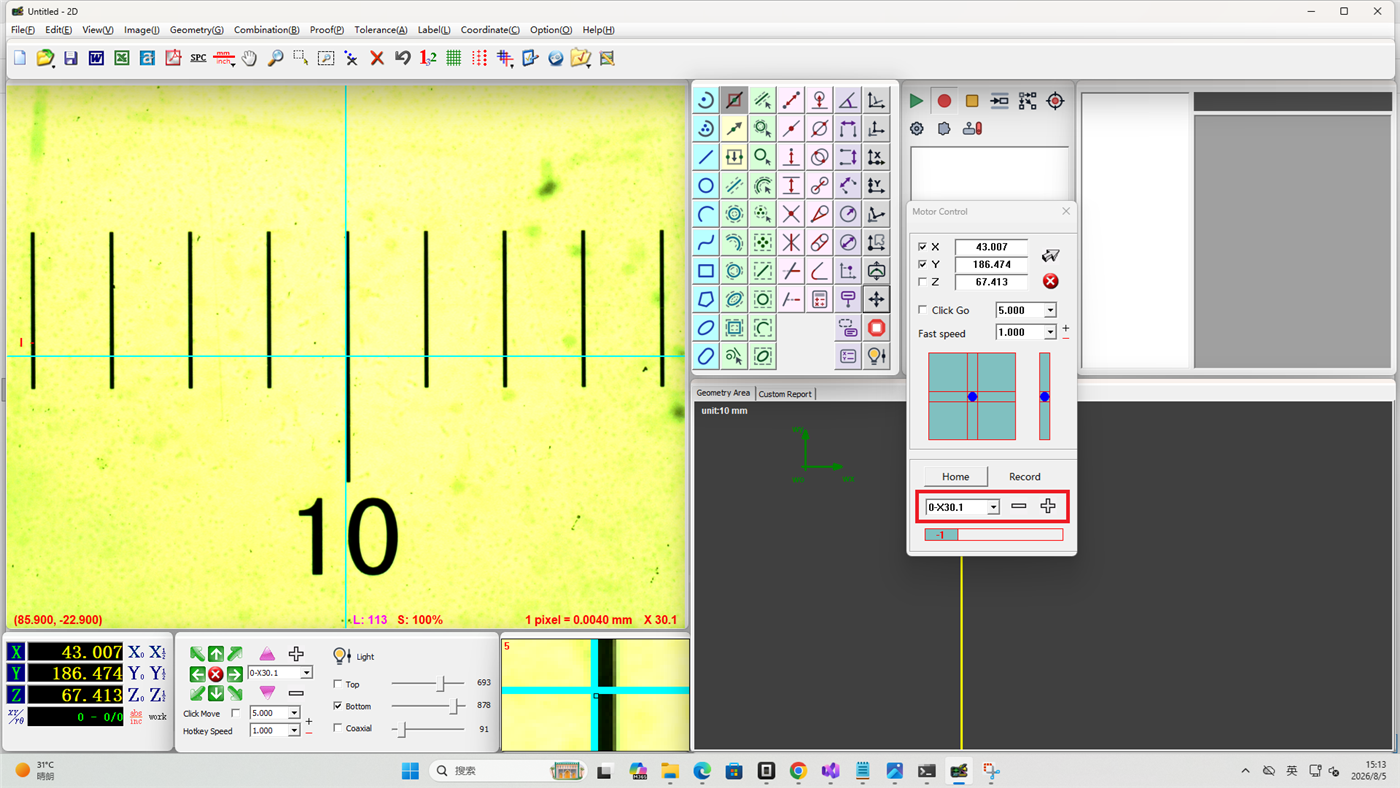
Motor control is used to operate the X, Y, and Z axis movement of the machine. Easson2D provides multiple motor control methods, allowing you to choose the most convenient operation for different measurement tasks.
Operation
Accessing Motor Control
Click the motor button in the Measurement Bar to open the motor control interface.
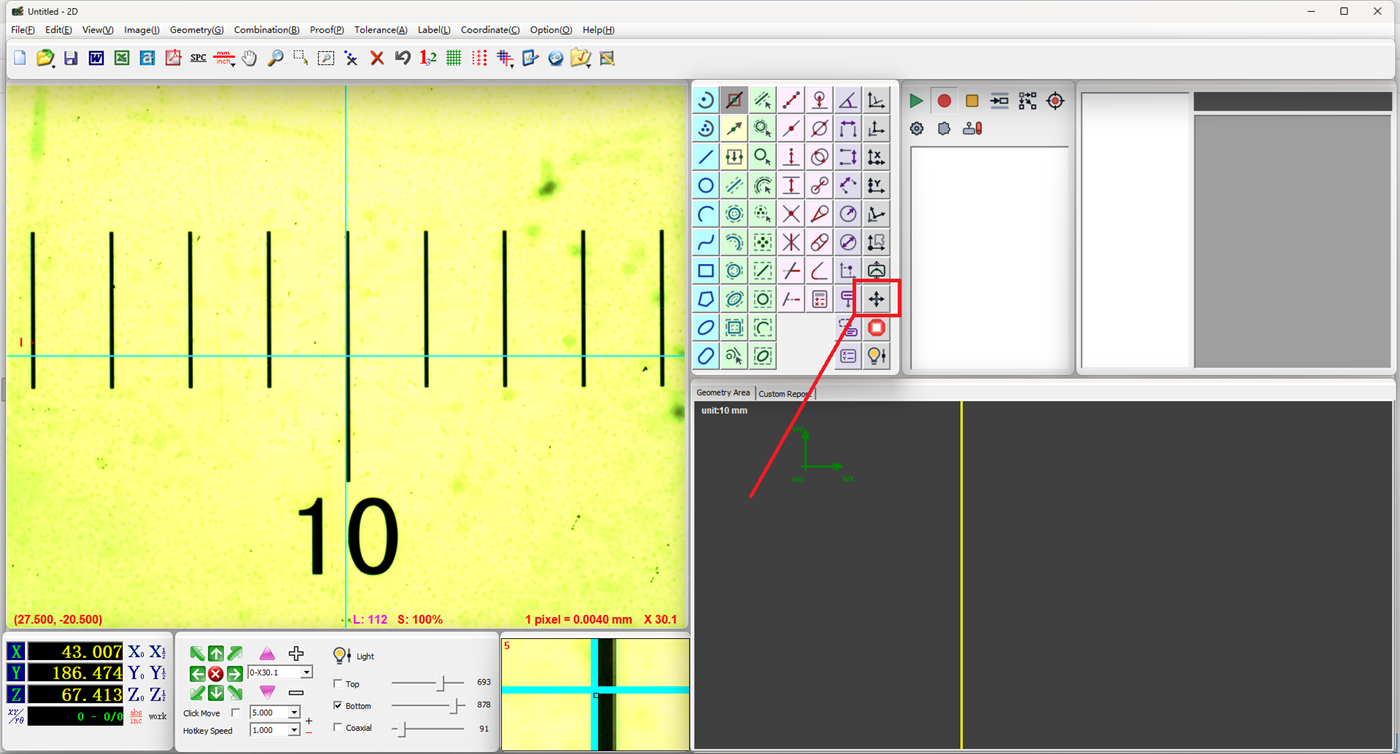
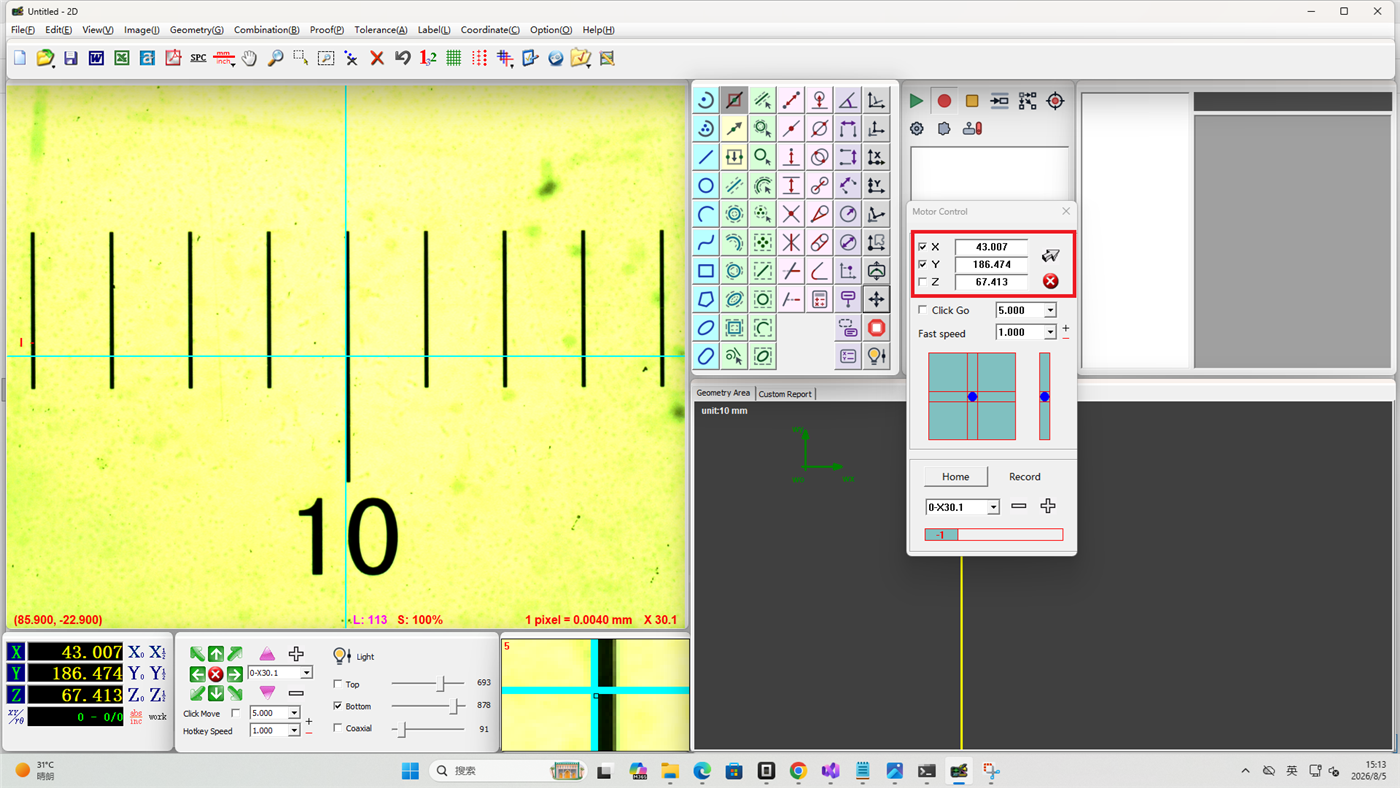
Coordinate Positioning
Enter the target coordinate values in the input fields, and the stage will automatically move to the specified position. This is ideal for scenarios requiring precise positioning to known coordinates.
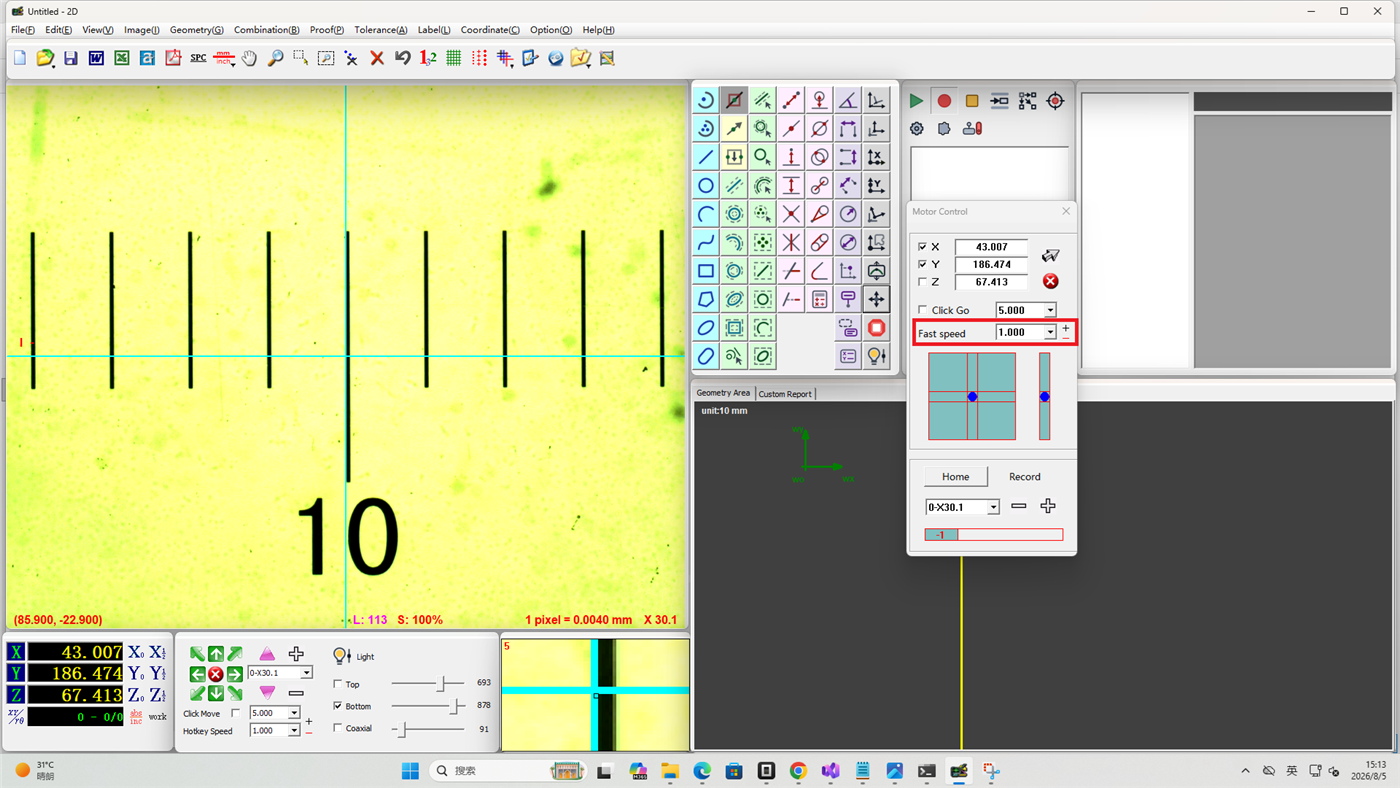
Speed Adjustment
Use the speed presets to quickly adjust the stage movement speed for different phases of operation.
- High speed: Suitable for long-distance positioning
- Low speed: Suitable for fine alignment
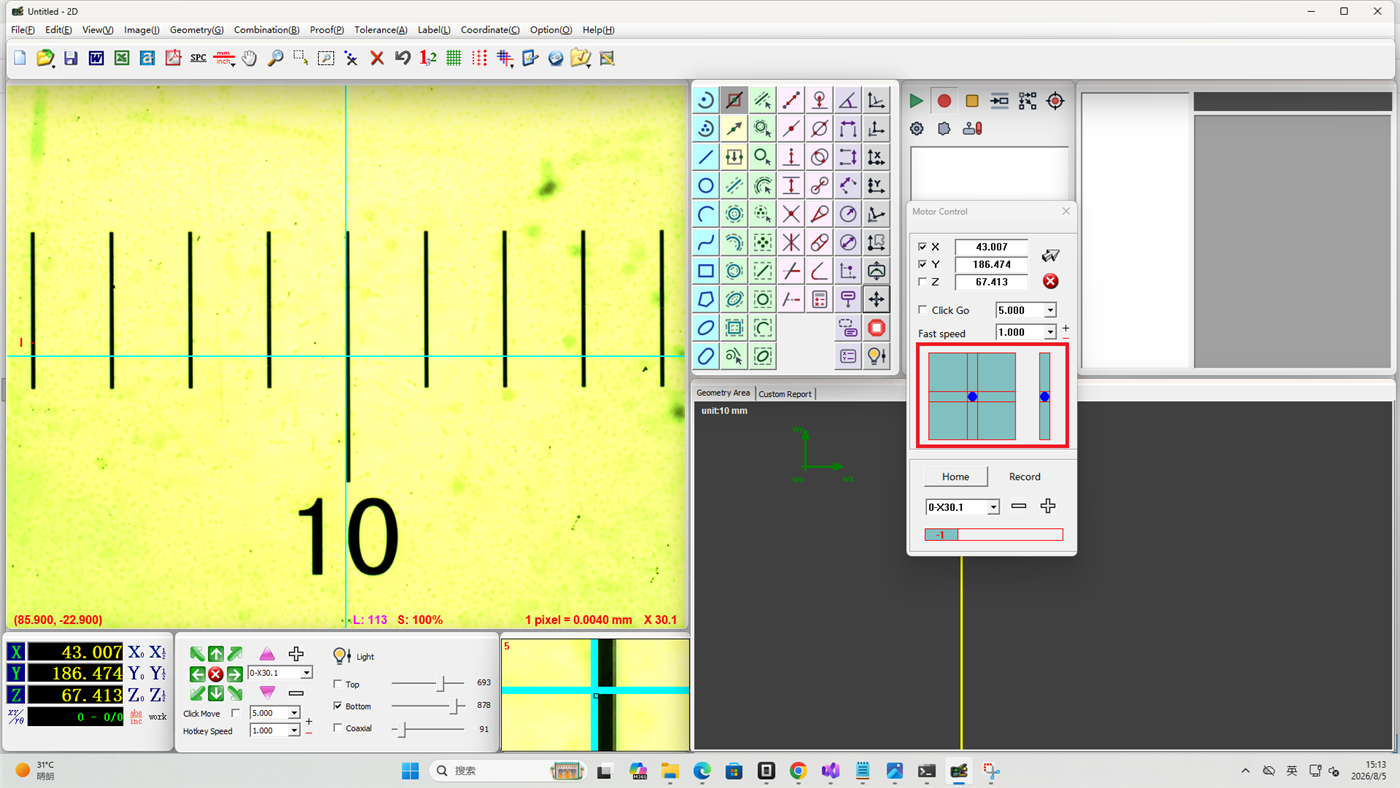
Mouse-Based Movement
Use the mouse to directly control stage movement. Press and hold the middle mouse button while dragging in the Vision Area, and the stage will respond in real time to the movement direction.
Magnification Switching
Select the target magnification from the dropdown menu, and the machine will automatically switch to that magnification. Useful when you need to change the magnification level for measurement purposes.
Notes
- When using coordinate positioning, ensure the entered coordinates are within the stage travel range
- Exercise caution at high speeds to avoid collisions between the workpiece and the lens
- After switching magnifications, check the focus status and refocus if necessary
- For middle mouse button dragging, see the Operating Habits page