Operating Habits
Overview
Easson2D supports both keyboard and mouse operations. Mastering these controls will help you move the stage and perform measurements more efficiently.
Keyboard Operations
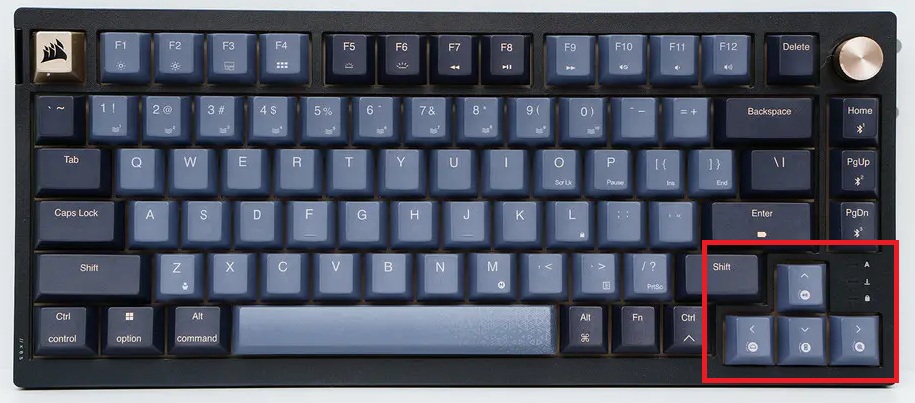
Use the arrow keys on the keyboard to move the stage in different directions.
| Key | Function |
|---|---|
| ↑ (Up) | Move stage forward |
| ↓ (Down) | Move stage backward |
| ← (Left) | Move stage left |
| → (Right) | Move stage right |
Mouse Operations
The following describes the primary mouse functions in Easson2D.
Left Button
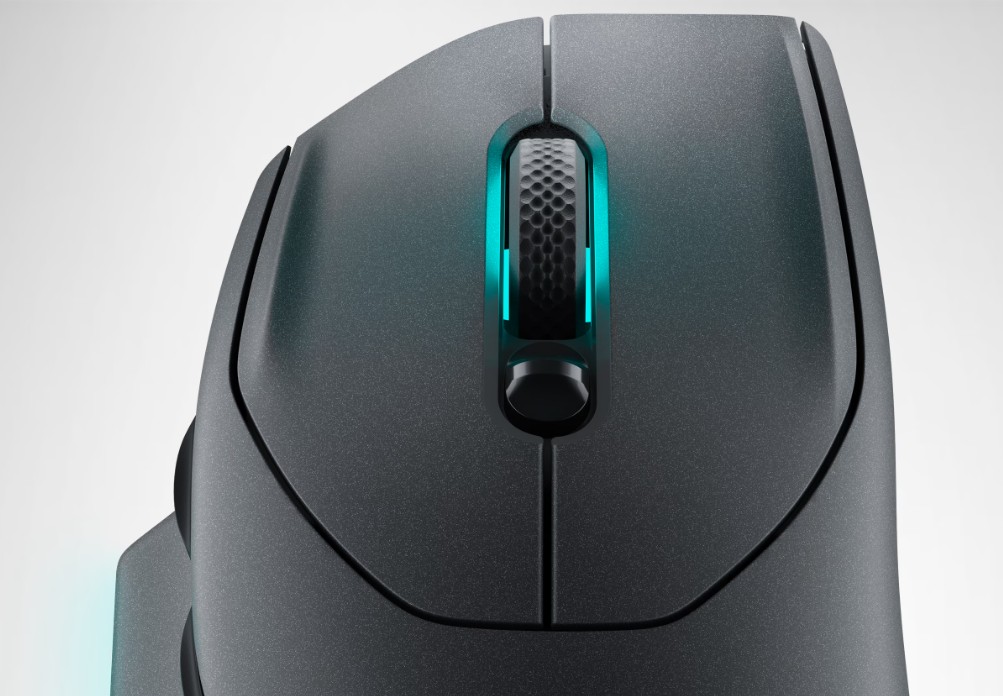
In measurement mode, click the left mouse button to generate a temporary auxiliary measurement line, which helps with positioning and previewing the measurement path.
Middle Button
Press and hold the middle mouse button while dragging to move the stage within the Vision Area for quick workpiece positioning.
Note
Middle-button dragging is the most commonly used method for moving the stage. Combined with the Vision Area, you can quickly locate the target measurement region.
Right Button
In measurement mode, click the right mouse button to confirm the current operation and generate a measurement element, completing a full measurement action.
Quick Reference
| Control | Action | Function |
|---|---|---|
| Keyboard | Arrow keys | Move stage in the corresponding direction |
| Left mouse button | Click | Generate temporary auxiliary measurement line |
| Middle mouse button | Press and drag | Drag to move the stage |
| Right mouse button | Click | Confirm and generate measurement element |
Notes
- The behavior of mouse operations may vary depending on the current measurement mode
- It is recommended to practice mouse operations before starting actual measurements to avoid accidental interruptions