Save and Auto-Save
Overview
Easson2D's custom report supports both manual save and auto-save.
Measurement data, text content, and pass/fail colors in the report can all be saved back to the current Excel file.
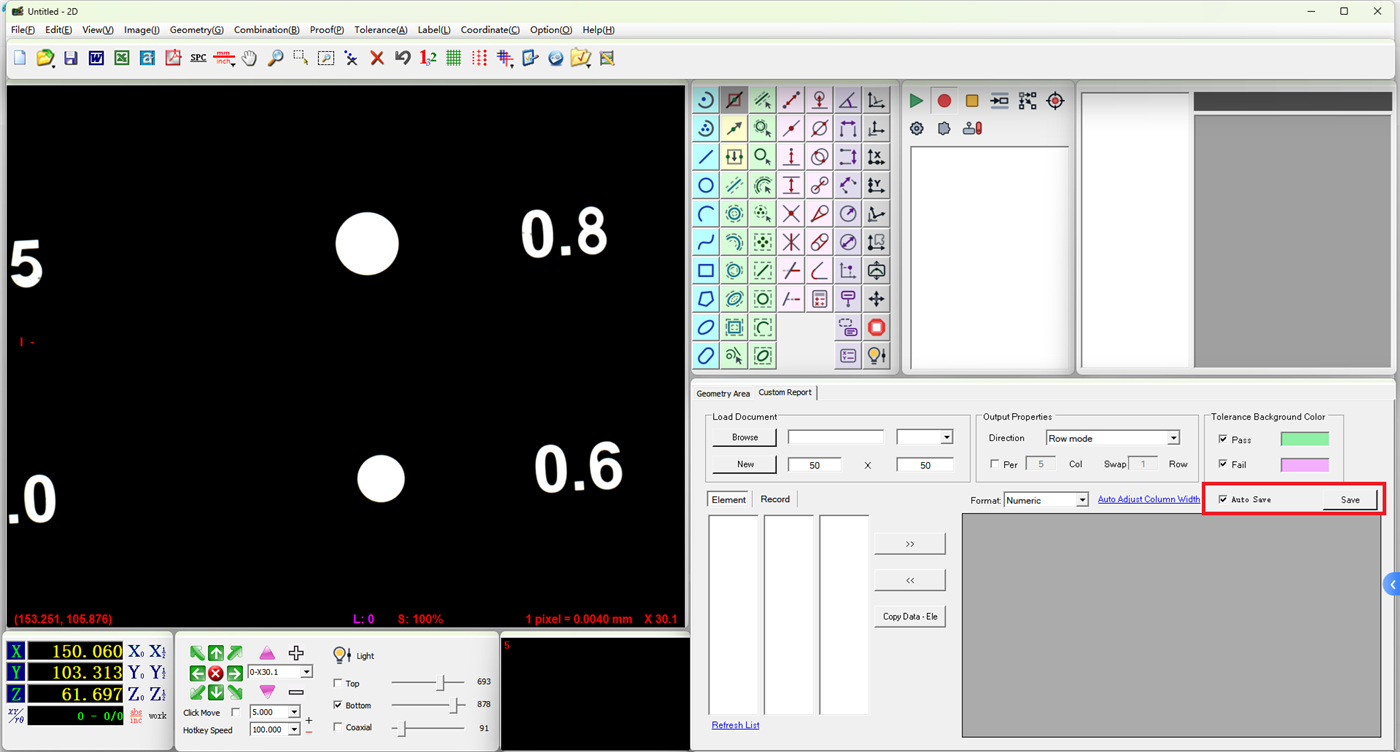
Manual Save
After editing the report, click Save to write the current custom report content into the loaded Excel file and worksheet.
Saved content includes:
- Text and measurement data in the report
- Current worksheet content
- Pass and fail cell colors
After saving, you can directly open the file in Excel to view the final report.
Auto-Save
If Auto-Save is enabled, Easson2D will automatically save the custom report without requiring repeated manual saves.
When the following changes occur, for example:
- New measurement data written after program execution
- Manual modification of report cells
- New data written by the data recording feature
- Changes to pass or fail colors
The software automatically detects whether the report has been modified and performs a save after the user stops editing.
With auto-save enabled, the risk of forgetting to save the report during prolonged continuous measurement is reduced.
Behavior During Auto-Save
When auto-save is enabled, manual Save clicks are generally not needed.
If auto-save is in progress, the software temporarily avoids other simultaneous save operations to prevent multiple save tasks from accessing the same Excel file concurrently.
When auto-save is enabled and manual save is clicked, the software will also indicate that auto-save is already in use, so no duplicate action is needed.
Working with Automated Measurement
In batch measurement, you can use the following simultaneously:
Automatic program execution + Custom report auto-fill + Auto-save
This way, each time the program obtains a new measurement result, the data is automatically updated in the report and saved to the Excel file.
The entire process eliminates repeated manual data copying or file saving, making it especially suitable for consecutive measurement and batch inspection.
Recommended Usage
When creating and adjusting report templates, use manual save to conveniently confirm changes before saving.
For reports that have been configured and are used for daily automated measurement, it is recommended to enable Auto-Save so that measurement data is continuously and automatically written and saved to the Excel file.