Software Installation
Overview
Easson2D requires the installation of necessary runtime libraries and the main program on a Windows operating system before use. The installation process consists of two phases: installing the runtime components first, then the main application.
Prerequisites
Before installation, please confirm the following:
- The operating system is Windows
- The computer has sufficient disk space for the software and measurement data
- No other measurement software is currently running
Installation Steps
Step 1: Download the Software
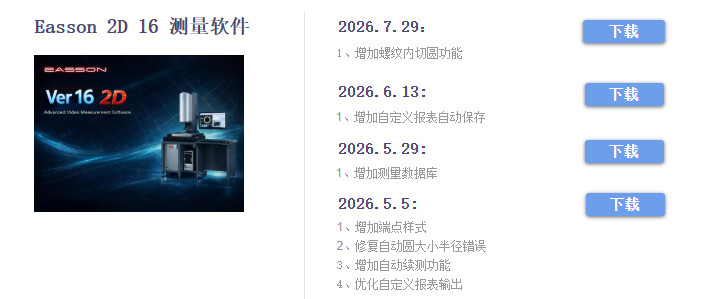
Open a browser and go to the Easson2D official download page
Download the latest version of the Easson2D installation package
Step 2: Install Runtime Libraries
Before installing the main program, the required runtime environments must be set up.
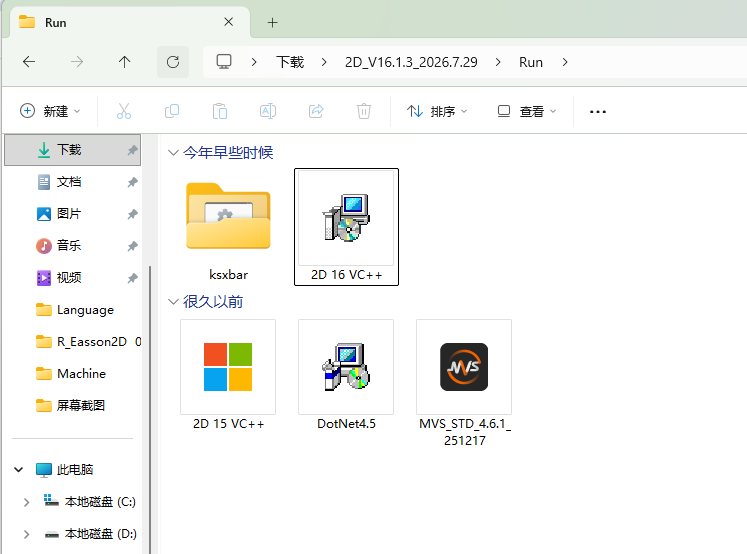
Open the downloaded installation package folder
Navigate to the
RunsdirectoryInstall the following runtime libraries in order:
- MVS.exe — Camera driver or runtime environment
- 2D 15 VC++.exe — Visual C++ runtime library
- 2D 16 VC++.exe — Visual C++ runtime library
Follow the prompts of each installer to complete the installation
Note
Even if an older version of the runtime library is already installed on your computer, it is recommended to install the version provided in the software package to ensure compatibility.
Step 3: Install the Main Program
After completing the runtime library installation, install the Easson2D main program.
- Return to the root directory of the installation package
- Locate and run 2D.Setup.exe
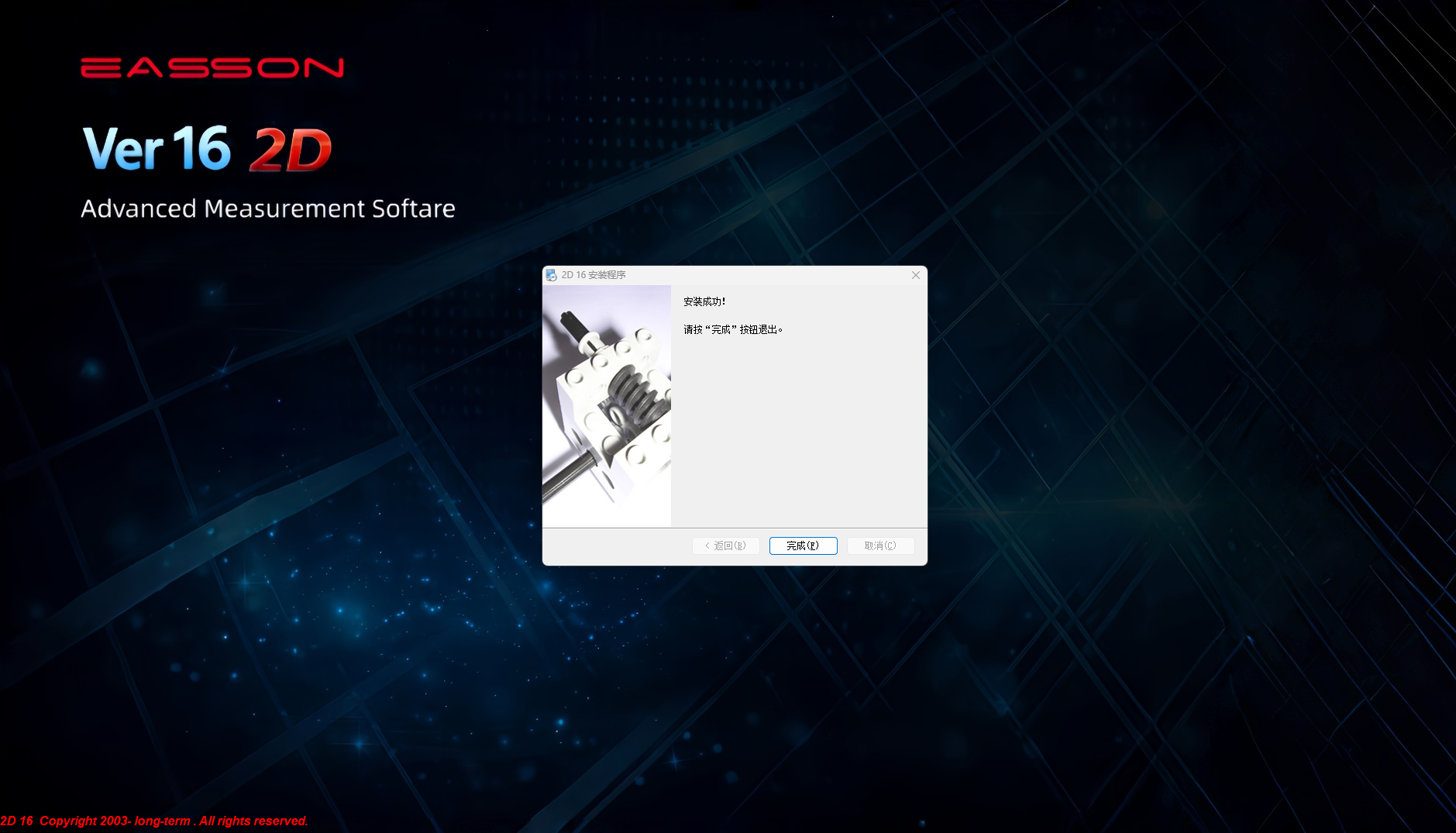
- Follow the installation wizard prompts to complete the setup
- An Easson2D shortcut will be created on the desktop upon completion
Important
It is recommended to use an English-only installation path to avoid compatibility issues caused by non-ASCII characters in the path.
After Installation
Once the installation is complete, double-click the Easson2D icon on the desktop to launch the software.
If the software requires a dongle or license file to run, ensure that the dongle is properly inserted into a USB port on the computer and that the license file is placed in the correct location.
Notes
- It is recommended to run the installers with administrator privileges
- If antivirus software displays a warning during installation, select "Allow" or "Trust"
- If the software fails to start after installation, try reinstalling the runtime libraries
- Consider temporarily disabling the Windows firewall before installation and re-enabling it afterwards